
How to set a water reminder on your Mac
Set a water reminder on a Mac with Reminders, Calendar or Shortcuts, the honest pros and cons of each, and why a reminder that knows your context works better.
The quickest way to set a water reminder on a Mac is the Reminders app. Add a reminder called "Drink a glass of water", give it a time, and set it to repeat daily. For several a day, make three or four of them at different times. Calendar alerts work too, and on macOS Tahoe a Shortcuts automation may be able to do the same job.
All of these share one weakness: they fire at a clock time, whether you are on a call, deep in a thought or out at lunch. That is a big part of why they so often get ignored after the first week. This post walks through each option with its honest pros and cons, then looks at what makes a reminder you actually act on.
Option 1: a repeating reminder in Reminders
Reminders is the simplest place to start, and if you use iCloud, the same reminders show up on your iPhone.
Set it up
- Open Reminders and make a list for it, such as "Water", with the Add List button at the bottom of the sidebar. A separate list keeps these out of your to-dos.
- Add a reminder in that list: "Drink a glass of water".
- Click the info button (the small "i" next to the reminder) and turn on a date and a time. Set the first one for mid-morning, say 10 AM.
- Under Repeat, choose Daily. If you only want workdays, look for Weekdays in the same menu, or choose Custom and pick the days.
- Repeat for two or three more times across the day, for example 12:30 PM, 3 PM and 5 PM.
There is also an Hourly repeat. It is tempting, but it has no sense of a working day, so it is better for a short stretch than a whole day.
Make it stay on screen
Check how the notification looks in System Settings > Notifications > Reminders. Banners appear in the top right corner and slide away by themselves. Alerts stay on screen until you dismiss them. If you keep missing your reminders, switch to Alerts.
The honest trade-offs
- Good: built in, easy to set up, and ticking one off feels satisfying. A repeating reminder moves on to its next time when you tick it off.
- Less good: it fires at the clock time even if you are mid-call or mid-sentence. If you are away from the Mac, it waits in Notification Center, so you come back to a stale stack. Ignore one and it sits there overdue. If your iPhone shows the same reminder, you may get nudged twice.
Option 2: a Calendar event with an alert
Calendar works well if you already live in it, because the water breaks sit in your day next to everything else.
Set it up
- In Calendar, choose File > New Calendar and call it "Water". If your Mac offers an On My Mac calendar, that keeps it off any shared account.
- Make a short event at 10 AM called "Water".
- In the event details, set the repeat to Every Day, or choose Custom to pick Monday to Friday.
- Set the alert to At time of event.
- Add a few more events at other times of day.
The honest trade-offs
- Good: you can see the breaks in your day and drag one when a meeting lands on it. Weekday-only repeats are easy.
- Less good: it clutters your calendar. Depending on your account and who can see it, events on a shared or work calendar may show you as busy, so keep them on a separate calendar that nobody books against. And it has the same timing problem as Reminders, often worse, because the moments you are most likely to be in a meeting are exactly the times you would pick.
Option 3: a Shortcuts automation
macOS Tahoe brought automations to the Shortcuts app on the Mac, including ones that run at a set time of day. If your Mac has them, you can build a shortcut with a single Show Alert action ("Time for a glass of water") and set an automation to run it at a few times each day. Depending on how you set it up, it may ask before it runs, so check that setting.
On earlier versions, such as macOS Sequoia, Shortcuts on the Mac does not run on a schedule by itself, so Reminders or Calendar are the better choice.
- Good: an alert window that waits for a click, and room to add more steps later.
- Less good: the most setup of the three, only on recent macOS, and the same clock-time problem.
You can also set an alarm in the Clock app, but alarms are built to get your attention with a sound. That suits waking up better than a quiet sip at the desk.
Why clock-time reminders get ignored
Plenty of people who set up a water reminder stop acting on it within a week or two. The reasons are fairly predictable.
- They arrive at the wrong moment. A reminder at 3 PM sharp lands in the middle of whatever you were doing at 3 PM: a call, a sentence, a screen share. You dismiss it to get it out of the way and forget it a second later.
- They arrive when you're not there. Step out for lunch and you come back to a reminder that is an hour old. By then it means nothing.
- They all look the same. The same words at the same time every day turn into background. After a few days your hand clicks the close button before your brain reads it.
- There's no gentle "not now". Most options give you a dismiss or a fixed snooze. If dismissing is easier than drinking, dismissing wins.
You can soften some of this with Apple's tools. Turning on a Focus, such as Do Not Disturb, during calls holds back notifications from apps you haven't allowed until it ends. In System Settings > Notifications, the setting "Allow notifications when mirroring or sharing the display" controls whether they appear while you share your screen. Spreading the reminders across the day and wording each one a little differently helps too.
The more lasting fix is a reminder that knows a little about your context: one that stays quiet while you are on a call, waits while you are away, and comes back once if you say "later". Reminders that know when not to remind you goes into that idea in more detail.
A water reminder that reads the room
This is the idea behind Notchpals. Its two Water characters are Melo the watermelon and Puddle the seal pup. Whichever one is in your crew slides down from the notch to suggest a drink. On a Mac without a notch, Notchpals draws a small black island at the top center of the main display, and the character appears from that instead.
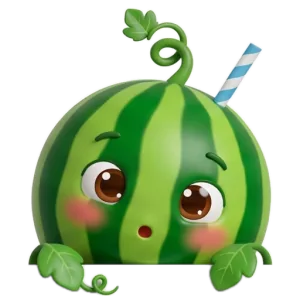
MeloPsst. My straw says it's water time. My straw is never wrong.
Here is how that compares with a clock-time reminder.
| Reminders or Calendar | Notchpals | |
|---|---|---|
| When it comes | At the exact times you set | Within a window, spaced across the day |
| On a call | Interrupts, unless you turn on a Focus | Quiet while the microphone or camera is in use |
| While you're away | Fires anyway and waits | Waits; away time doesn't count |
| Full screen app in front | Can still appear | Quiet |
| "Not now" | Dismiss or snooze | Later brings it back one more time, 20 minutes later |
There are no clock times to set. The morning glass arrives once, between 8 and 11 AM, after a quarter of an hour of sitting at the Mac. The regular water reminder can come any time from 9 AM to 8 PM, and a separate afternoon visit lands between 2 and 5 PM. Instead of times, you choose a pace. One setting decides how many repeating reminders the whole crew gets in a day: Calm (4), Normal (8) or Chatty (12), spaced at least roughly two hours, an hour or 40 minutes apart. Water shares that allowance with eye breaks and any other repeating moments in your crew, and no two unprompted visits come within 20 minutes of each other. The wording changes as well: a character won't repeat a line within three days, which takes care of the "they all look the same" problem above.
Two honest limits. Notchpals doesn't log what you drink: it trusts your Done. And it does not read Focus modes or Do Not Disturb, or detect screen sharing. If you are presenting without your microphone or camera on, pause the crew from the menu bar for an hour first.
Which one to pick
- You want something set up in two minutes: a few daily reminders in Reminders, with the alert style set to Alerts.
- Your day is run by your calendar: short events on a separate Water calendar, with an alert at the time of each.
- You're on macOS Tahoe and like building things: a Shortcuts automation with a Show Alert.
- You keep ignoring the first three: a reminder that waits for a good moment, like a Notchpals water character.
Whichever you choose, keep a full glass or bottle within reach. A reminder only works if acting on it takes less effort than dismissing it. If you are not sure how much to aim for, how much water should you drink at work has the numbers.
More on water
 WaterSigns you are not drinking enough water at workThirst, dark urine, headaches and the afternoon fog: common signs of mild dehydration at a desk, what they can and cannot tell you, and when to see a doctor.
- WaterA glass of water first thing: what it does and what it doesn'tWhat a morning glass of water really does after a night's sleep, what it doesn't (no detox, no metabolism trick) and how to drink it before email.
 WaterWater and the afternoon slump: what actually helps at 3 PMWhy energy dips between 2 and 4 PM (body clock, lunch, short sleep, too little water, sitting) and a ten-minute routine of water, daylight and a walk.