
Meal reminders on a Mac that you won't just dismiss
Why a lunch alert at 12:00 gets swiped away, how to set meal reminders with Apple's own apps, and reminders that come in a window while you're at the Mac.
You can set a meal reminder on a Mac in about a minute with Reminders, Calendar or the Clock app. Setting one is easy. Getting it to work is harder, because a fixed alert at exactly 12:00 is one of the easiest notifications in the world to wave away.
The reminders that actually get you to eat have a few things in common. They come at a time you chose from your real day, they allow some give around that time, they only appear when you are there to see them, and they let you put them off once without losing them. This post covers why the plain alarm fails, what Apple's own apps can do, and how Notchpals handles meals.
Why a 12:00 alarm gets dismissed
Think about where you usually are when a lunch alert fires.
- In the middle of something. You click it away, fully meaning to eat in five minutes. Then the notification is gone and so is the thought.
- On a call. The banner slides in over the meeting, you dismiss it without reading, and lunch never comes back up.
- Already in the kitchen. It goes off to an empty room, which teaches you that it is noise.
- On a day that doesn't fit. Your lunch moves with your meetings. A reminder that doesn't move with it is wrong half the week.
Repeat that for a few weeks and you start dismissing it on reflex, the way you skip past any alert you see every day. People who study alarms in hospitals call this alarm fatigue: the more often an alert fires when it doesn't matter, the less attention it gets when it does. A meal reminder is not a hospital alarm, but the same thing happens on a smaller scale.
What a good meal reminder does
Before picking a tool, it helps to know what you want from it.
- Your time, not a default. Look at last week and see when lunch could realistically happen. That is the time to use.
- Some flexibility. A window around that time copes with meetings that run over far better than a single minute.
- Only when you're there. A reminder that waits until you are back at the Mac is one you actually see.
- A real second chance. A snooze that brings it back once, soon, without you having to do anything.
- Quiet at the wrong moments. Not in the middle of a video call.
- Few enough to respect. One nudge per meal is plenty.
No tool does all of this perfectly, so it is fine to combine two.
Meal reminders with Apple's own apps
Reminders
Create a reminder called "Lunch", open its details with the small "i" button beside it, give it a date and a time, and set Repeat to Weekdays (or Daily). When it is due you get a notification, and from it you can mark the reminder as completed or ask to be reminded again later. Because Reminders syncs through iCloud, the same alert also reaches your iPhone if you use one. It is quick to set up and works everywhere, but it fires at its set time whether or not you are at your desk.
Calendar
Make a repeating event called "Lunch" for the time you want, add an alert (at the start time, or a few minutes before), and set it to repeat every day or, with a custom repeat, on weekdays only. The real benefit is not the alert but the block: if you share your calendar at work, colleagues see you are busy and are less likely to book over it. This is the best way to protect the time, though the alert itself is as easy to dismiss as any other.
Clock
Recent versions of macOS include the Clock app, with alarms you can label and set to repeat on the days you choose. An alarm is harder to ignore than a banner, which some people need. It is also blunt: it goes off at the exact minute, even if you are presenting.
Shortcuts
Starting with macOS Tahoe, Shortcuts on the Mac can run automations, including one at a set time of day. (On earlier versions, time-based automations live only in Shortcuts on iPhone and iPad.) If your Mac has them, that opens a few options, such as showing a notification and opening your lunch list or a recipe at the same moment. It is worth exploring if you already use Shortcuts, and more work than it is worth if you don't.
| Option | Good at | Weak spot |
|---|---|---|
| Reminders | Quick to set, repeats on weekdays, syncs to iPhone | Fires at the set time wherever you are |
| Calendar | Protects the time from meetings | The alert is just another banner |
| Clock | Hard to miss | Fixed minute, no sense of context |
| Shortcuts | Flexible if you know it | Takes time to set up, and needs macOS Tahoe |
A good combination for most people is a Calendar block to protect the time plus a reminder that is harder to ignore.
Meal reminders in Notchpals
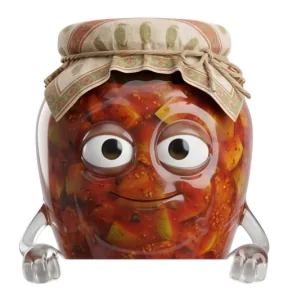
Notchpals takes a different approach. Instead of a banner in the corner, a character slides down from the notch with a line about eating, and the timing is built around the problems above. The Meals characters are Mirchi, a chili with a short fuse who can be one of the two characters you pick, and three add-ons you can buy later: Achaar, Nani and Pinky Aunty. Your crew has one of them at a time, and you can try any of them in your notch from the Browse window first.


You set the times
During setup you set your lunch and dinner times, and in Settings you can set breakfast, lunch, snack and dinner. Each meal visits at most once a day, inside a window that runs from an hour before the time you set to an hour after it. Until you set your own times, the windows are:
| Meal | Default window |
|---|---|
| Breakfast | 7 to 10:30 AM |
| Lunch | 12:30 to 2:30 PM |
| Snack | 4 to 5:30 PM |
| Dinner | 7:30 to 9:30 PM |
It reads the room
A meal only comes while you are at the Mac. If there has been no keyboard or mouse activity for two minutes, Notchpals treats you as away and waits, so lunch never goes off to an empty room. The call problem is covered too: Notchpals holds its characters back whenever your microphone or camera is live, and whenever a full screen app, such as a slideshow you are presenting, covers the display with the notch. And a character only says what fits the moment, so you never get a lunch line at breakfast time.

MirchiYour stomach is growling louder than me. Impressive. Now go eat lunch!
Later means later
Press Done when you are going to eat. Press Later and Mirchi gives you about 20 minutes, then returns one time if the meal still applies. Press Later again and that meal is dropped for the day; letting a visit time out without pressing anything counts as Later too. That is the snooze most meal alarms are missing: one easy delay, without you having to set anything.
Notchpals doesn't log what or when you ate, and it doesn't check. It trusts your Done. It also never piles up: characters take turns, one at a time, and a gap of 20 minutes or more separates any two visits you didn't prompt.
Pick times from your real day
Whatever tool you use, the time matters more than the tool. A few tips:
- Look at your calendar, not the clock. If your morning stand-up ends at 12:15 most days, lunch at 12:30 will work and lunch at 12:00 won't.
- Give breakfast its own time if you tend to skip it. Even something small before the inbox can make the morning easier.
- Don't forget the afternoon snack. It is the meal that stops you from arriving at dinner starving.
- Adjust after a week. If you keep pressing Later, the time is probably wrong. Move it.
There is more on choosing the times themselves in regular meal times when working from home. If you often find you have worked straight through lunch without noticing, forgetting to eat when you're focused looks at why that happens. And if the problem is the other end of the day, stop eating dinner at your desk covers making dinner the end of work.
More on meals and snacks
 Meals and snacksHow to keep regular meal times when you work from homeAt home, meals drift: grazing all morning, lunch at 3, dinner whenever the laptop shuts. How to set meal times that fit your day and keep them most days.
- Meals and snacksSkipping lunch at work: what it does to your afternoonSkipping lunch rarely saves time. What it does to energy, mood and focus by mid-afternoon, why it keeps happening, and how to protect a lunch window.
- Meals and snacksStop eating dinner at your desk: make it the end of the dayWorking through dinner pushes everything later: the meal, the evening and often your sleep. Why it happens, and how to make dinner a hard stop.