
How far should your screen be from your eyes? Distance and height
About an arm's length away, with the top at or just below eye level. Why that works, fixes for laptops and big displays, and a one-minute check at your desk.
For most people, a screen should sit about an arm's length from your eyes, with the top edge at or a little below eye level, so you look slightly down at the middle of it. The American Optometric Association suggests 20 to 28 inches (about 50 to 70 centimeters) from your eyes, with the center of the screen about 4 or 5 inches below eye level, which works out to a downward gaze of roughly 15 to 20 degrees. Bigger displays can go further back.
If you work on a laptop, there is a good chance your screen is both too low and too close, because the keyboard decides where the screen goes. This post explains why distance and height matter, what to change for laptops and large displays, and how to check your own desk in about a minute.
Why distance matters
The closer the thing you are looking at, the harder your eyes work. To see something near, the focusing muscle inside each eye has to tighten and reshape the lens, and your two eyes have to angle in toward each other. At an arm's length that effort is modest. At a forearm's length, it is much more, and over a day it adds up to tired eyes. The 20-20-20 rule exists to give that muscle a rest now and then.
Too far is a problem too, just a different one. If the screen is so far back that you have to squint or lean forward, you have traded eye strain for neck strain. The fix is almost never to pull the screen closer. It is to make the text bigger, so you can read it comfortably from where you sit.
Why height matters
Your eyes are most comfortable looking slightly down, not straight ahead and not up. Looking down a little also lowers your upper eyelids, which covers more of the eye and slows the drying that comes with long screen sessions. (The blinking side of that story is in why you blink less at the computer.)
Height is also about your neck. Your head is heavy, and the further it tips forward or back, the more your neck and shoulders work to hold it there.
- Screen too high. Your chin lifts, the back of your neck tightens and your eyes open wider. This is common with a large monitor on a tall stand.
- Screen too low. Your head drops forward and your shoulders round. This is the classic laptop posture.
If you wear bifocals or progressive lenses, the usual advice changes. You read through the lower part of the lens, so a screen at normal height makes you tip your head back to see it. Lower the screen a little further, or ask your optometrist about glasses made for screen distance.
Bigger screens and two screens
A larger display needs more distance. A good test is that you can see the whole screen without turning your head much, and read the text without leaning in. If your eyes have to travel a long way to reach the corners, push it back a little and use a larger text size if you need to.
With two displays, put the one you use most directly in front of you, and the other to one side, angled in. If you use both about equally, put the gap between them in front of your nose and angle both slightly inward. Try to keep the tops of both at about the same height, so your eyes don't have to adjust every time you move between them.
Laptops: too low and too close
A laptop is a compromise. The screen and keyboard are joined, so when your hands are in the right place, the screen is too low and closer than it should be. Over a day, most people end up hunched over it.
The best fix is to separate the two:
- Raise the laptop on a stand, or on a stack of books, until the top of the screen is near eye level.
- Add a separate keyboard and mouse or trackpad, so your hands can stay low while the screen goes up.
- Push it back. Once you aren't typing on it, the laptop can sit further away, at a proper arm's length.
On days when you only have the laptop, tilt the screen back a little, sit back in your chair rather than perching on the edge, and take more breaks than usual. A laptop on its own is fine for a short spell. It is the full days that hurt. Good posture with a MacBook has three setups for the different situations.
Check your setup in a minute
You need nothing but your arm and a sentence of text.
- Sit the way you work. Back against the chair, feet on the floor, hands where they would be on the keyboard.
- Check the distance. Stretch one arm straight out toward the screen. Your fingertips should reach it or come close. If your whole palm lands flat on the glass, it is too close. If you are well short, check that you can still read comfortably before moving anything.
- Check the height. Look straight ahead with your head level, not tilted up or down. Your gaze should land at or slightly below the top edge of the screen. If your gaze lands well down into the screen, the screen is too high. If it lands on the wall above the screen, the screen is too low.
- Check the center. The screen you use most should be straight in front of you, not off to one side.
- Check the text. Open something you read all day. If you catch yourself leaning in, make the text bigger rather than moving closer. On a Mac, slide the scaled resolution in System Settings > Displays one step toward Larger Text, or press Command and plus inside the app.
If you want a number, a tape measure from the bridge of your nose to the screen works. Somewhere between about 20 and 28 inches is the usual target, and further for a large display.
Fixes with what you already have
Most of these don't need new equipment.
- Too low: put books, a box or a ream of paper under the monitor or laptop.
- Too high: remove the monitor's stand, lower the arm, or raise your chair and add a footrest or a box for your feet.
- Too close: push the monitor back to the rear of the desk, and move the keyboard nearer so you can sit back.
- Too far: bring the text size up first. Only move the screen if larger text doesn't help.
A reminder for the afternoon
Screens drift. You lean in during a deadline, the laptop ends up back on your knees, a monitor gets nudged. A quick check partway through the day catches it.
Notchpals has a once-a-day visit for this check, and it belongs to the Posture area. If Sir Pounce or Barnaby is your crew's Posture character, it peeks out of the notch some time between 2 and 7 PM with a request to check how far away your screen is and how high. Barnaby, a butler, makes it sound like a point of etiquette.

BarnabyAn arm's length from the screen, please. Familiarity breeds squinting.
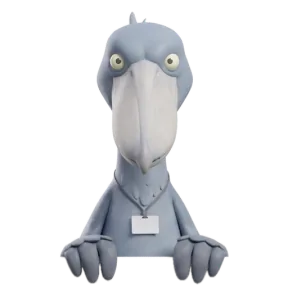
Placement is only half of it. However well the screen sits, close work still tires the focusing muscle, and that is what your Eyes character's eye breaks are for: a prompt to look across the room for 20 seconds. Bill, a shoebill, offers to mind the screen while you do.

BillI will watch the screen. You watch something twenty feet away. Twenty seconds.
Done means you have checked, or looked away. Later brings the same visit back once, 20 minutes on. The screen check comes at most once a day, while eye breaks repeat through the day on the allowance you set for your crew's repeating reminders.
If you have set your screen up well and your eyes or neck still hurt at the end of the day, see an optometrist or a physiotherapist. An out-of-date prescription or a neck problem won't be fixed by moving the monitor.
More on eyes and screens
 Eyes and screensIs Dark Mode better for your eyes? What actually mattersDark Mode or light mode for eye comfort: why neither wins outright, when each one reads better, astigmatism and glowing text, and switching automatically.
 Eyes and screensMac screen brightness for eye comfort: the settings that matterHow bright your Mac's screen should be, and how to set brightness, automatic brightness, True Tone, glare and contrast so long screen days are easier.
- Eyes and screensHow to make text bigger on a Mac and stop squintingMake text easier to read on a Mac: Larger Text in Displays, Command and plus in apps, Safari page zoom, Accessibility text size and a bigger pointer.